The Broker is visible in OBS but his voice is missing: a decision tree.
If you can see the Broker in OBS but the recording has no voice, the Browser source is not the fault: it carries no audio. His voice reaches OBS through Desktop Audio, so the break is in the Windows output device, the device OBS captures, a mute, a track or a monitoring setting. Work down the tree.
Two separate paths: picture and sound
Seeing the Broker in OBS proves one thing only: the Browser source has loaded the overlay page. His voice never travels that way. The overlay has no sound of its own; the Broker speaks through your Windows default output device, so OBS Desktop Audio captures him together with the game. There is no separate audio track yet. The picture path and the sound path share nothing but the app, which is why a perfect picture tells you nothing about the voice, and why every fix on this page is on the sound path.
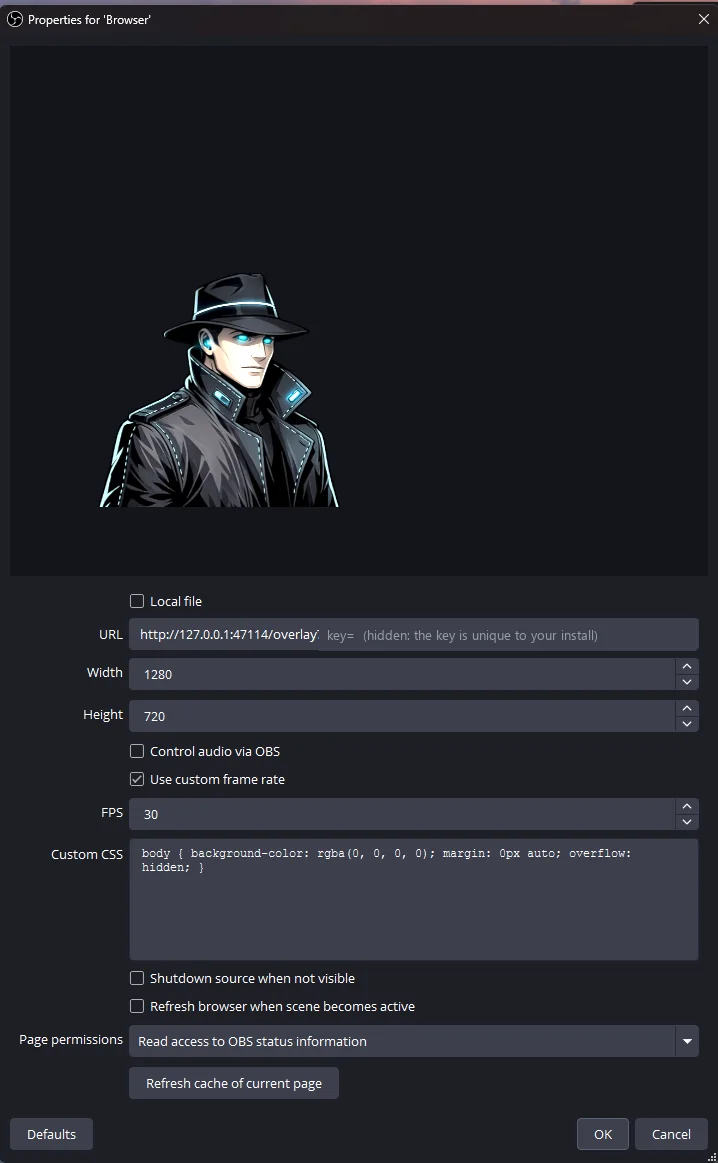
One consequence is worth saying plainly: nothing in the Browser source’s properties can bring his voice back. The dialog below is the developer’s own; none of its fields route audio, because the page it loads has none.
The developer’s OBS Browser-source properties (14 October 2026). Picture path only: URL, Width, Height, frame rate, CSS. His voice is not in here, and no setting in this dialog is the fix for a silent recording.
The decision tree
Start at the top and stop at the first branch that applies. Each later section explains the branch in detail.
01Is he actually speaking?
Look at the Broker Bar (toggle it with Ctrl + Shift + Alt + B). SPEAKING with a caption in the source means there is a voice to find. LISTENING or THINKING means there is no line to hear yet: silence is a decision he makes, during cutscenes, dialogue and menus, and when nothing is worth a line. VOICE RECOVERING means his voice is reconnecting while he keeps watching. Only continue once the Bar says SPEAKING.
03Does the Desktop Audio meter move while he speaks?
Watch the mixer with the game quiet. It does not move: OBS is capturing a different device, or no device: go to which device Desktop Audio captures. It moves: his voice is in OBS and is being lost on the way to the file: continue.
04Is Desktop Audio muted, or its fader at the bottom?
The speaker icon mutes the source to your output; the fader sets its level. Unmute, raise, and record again.
05Is Desktop Audio on the track the recording uses?
Open Advanced Audio Properties (the gear in the mixer) and look at the track checkboxes for Desktop Audio; then look at which tracks the recording contains in Settings → Output. A source on track 2 only, in a file whose player plays track 1, sounds missing while it is really there. Details under the mixer.
06Is Audio Monitoring set to Monitor Only?
In Advanced Audio Properties, Monitor Only (mute output) plays the source to your monitoring device and keeps it out of the output. You hear him; the file does not. Set Monitor Off, or Monitor and Output if you need to hear him through OBS.
07Are you capturing one application instead of the desktop?
With OBS’s per-application audio sources, only the chosen application is captured. The Broker is a different application from the game, so a scene that captures only the game’s audio has no voice. Capture the Signal Broker application too, or use Desktop Audio.
08Record for a moment and play the file back.
Play it in a player that lets you choose the audio track. If the voice is there, you are done; if not, start the tree again from 02 with the recording still playing, because now you know whether the file or your ears were missing him.
Windows: which device he speaks through
The app’s own support page puts it in one line: the Broker speaks through your Windows default output device; check that device and the Windows volume mixer. If he shows SPEAKING but you hear nothing, the sound is reaching the wrong device.
The default output device. In Windows 11, Start → Settings → System → Sound → Output: choosing a device there also makes it the default. Microsoft’s troubleshooting page adds a classic trap: an external monitor without speakers selected as the output device gives you no audio at all.
The volume mixer. Settings → System → Sound → Volume mixer lists each app. Microsoft documents that an app can use a different output device from the system default, and that an app can be muted or turned down there on its own. Check Signal Broker’s row: not muted, slider up, Output device the one you listen on.
Broker volume in the app. Settings → Voice & capture has the Broker volume. Raise it there before touching OBS.
You switched headsets or speakers mid-session. The app’s guide is explicit: if you switch headsets or speakers mid-session, stop and start the session again. Then re-check which device OBS captures, below, because it may have followed the change or not.
OBS: which device Desktop Audio captures
OBS starts out set to capture your desktop audio and microphone, and the Quick Start Guide points to Settings → Audio to choose the devices by hand. The Overview Guide notes that up to two desktop audio devices can be chosen there. What matters for the Broker is that the device named under Desktop Audio is the device Windows is actually playing him through.
Open Settings → Audio. Under Global Audio Devices, read Desktop Audio. Disabled means no desktop audio is captured at all and the mixer has no Desktop Audio row. Default means the Windows default device; a named device means that device only.
Match it to the device you hear him on. If you listen on a headset and Desktop Audio names the speakers, you will see a dead meter while hearing him perfectly. Pick the device by name when you use more than one.
Watch the meter, not the preview. The mixer’s meter is the proof that OBS receives him: it moves when he speaks. The in-app guide asks for exactly this: check your audio meters and make a short test recording before going live.
Desktop Audio 2. A second desktop device is for a second output you also want captured. It is not needed for the Broker and, set to the same device as the first, it doubles everything (the doubling guide).
The mixer: mute, fader, monitoring, tracks
Control
Where
Symptom when wrong
Fix
Mute
Speaker icon on the Desktop Audio row
Meter moves, file silent
Click to unmute
Fader
Slider on the Desktop Audio row
Meter barely moves, voice faint in the file
Raise the fader; balance him against the game with the app’s Broker volume
Advanced Audio Properties → track checkboxes; Settings → Output → which tracks the recording contains
Voice missing in one player, present in another; or missing from the stream
Tick Desktop Audio on every track you record and on the stream’s track
Red zone
The meter’s colour
Voice distorted, not missing
Lower the app’s Broker volume or the fader until peaks stay out of the red
OBS documents that standard video players play one audio track at a time, which is the whole mystery behind “the voice is in the file but I cannot hear it”: it is on a track the player is not playing. Keep the Broker on track 1 unless you know why he should not be.
A worked example
You start a session on speakers, OBS shows the Broker and the Desktop Audio meter dances. Halfway through you plug in a headset and Windows makes it the default output. From here on you hear him in the headset, the meter goes flat, and the recording’s second half has the game but no voice: OBS is still capturing the speakers it was told about, while Windows is playing him somewhere else.
The repair follows the tree. 01: the Bar says SPEAKING. 02: you hear him, so the break is inside OBS. 03: the meter is flat, so it is the device. Stop the session and start it again, as the app asks after a headset change; in OBS, set Desktop Audio to the headset by name; record for a moment and confirm the meter moves. Nothing in the Browser source changed at any point, and nothing there needed to.
Picture’s fine, sound’s gone. That is not a mystery, that is a wire.
If the meter never moves
If you can hear him, Desktop Audio names the device you hear him on, the device is enabled, and the meter still does not move while the game is quiet, the problem is outside this page: another capture or audio program holding the device, or an OBS build that behaves differently from the dialogs described here. Make a short recording with only the game audio playing to see whether Desktop Audio captures anything at all; if it does not, the fault is between Windows and OBS and has nothing to do with the Broker.
Two things remain true whatever you find: the overlay has no sound of its own, and streaming a session spends Signal Time exactly like playing without a stream. Before the next session, run the pre-recording check; if he goes quiet rather than silent, the support page explains LISTENING and VOICE RECOVERING.
Limits
This page covers the path from the app to an OBS recording or stream on one Windows PC; capture cards, virtual audio cables and second PCs are out of scope.
The overlay has no sound of its own, and there is no separate audio track yet; the Broker’s voice reaches OBS only through Desktop Audio.
OBS and Windows change their dialogs between versions; the labels here are the current ones and may read differently on yours.
Founder Alpha is early-access software; the commentary can be wrong, repeated or badly timed, and it is sold to customers in the United States only.
Founder Alpha is available to customers in the United States. Founder Alpha is early-access software. Signal Broker is an AI system. The Broker's words and voice are generated using AI. No person is speaking or writing what he says.