A tested, step-by-step setup for putting Signal Broker on your stream or recording: enable the overlay in the app, add one Browser source in OBS at 800 × 600, place it above your game, capture his voice with Desktop Audio, and fix a blank source.
What you need
Signal Broker Founder Alpha on a 64-bit Windows PC, signed in, with Signal Time on the account. The setup guide covers install and sign-in.
OBS Studio with its Browser source (the standard source type; no plug-in).
Your game, running, captured in OBS the way you already do (Game Capture or Window Capture).
The result is one transparent source in your scene with the Broker’s avatar and his spoken captions, and his voice in your Desktop Audio. The app says it in one sentence: Add your Broker to a stream or recording. The overlay shows his avatar and spoken captions on a transparent background.
In the app: enable the overlay and copy the source
Open OVERLAY → Set up OBS.
Turn on Enable OBS overlay. The status line reads Starting the overlay… and then waits for OBS: Waiting for OBS. Add the Browser source using the instructions below.
Choose a preset: Centered, Bottom left or Bottom right. Choose a preset, then preview it before copying (Preview preset opens it in your browser). Dialogue size sets how large his captions are.
Click Copy OBS Source. The button confirms with Copied. This is the address OBS will load; it points at your own PC and works only while Signal Broker is open with the overlay enabled.
Signal Broker never changes your OBS configuration.Everything in OBS below is done by you, in OBS.
In OBS: add the Browser source
The in-app card gives these three steps; they are repeated here word for word.
In OBS, select your scene. Under Sources, click + → Browser and name it Signal Broker.
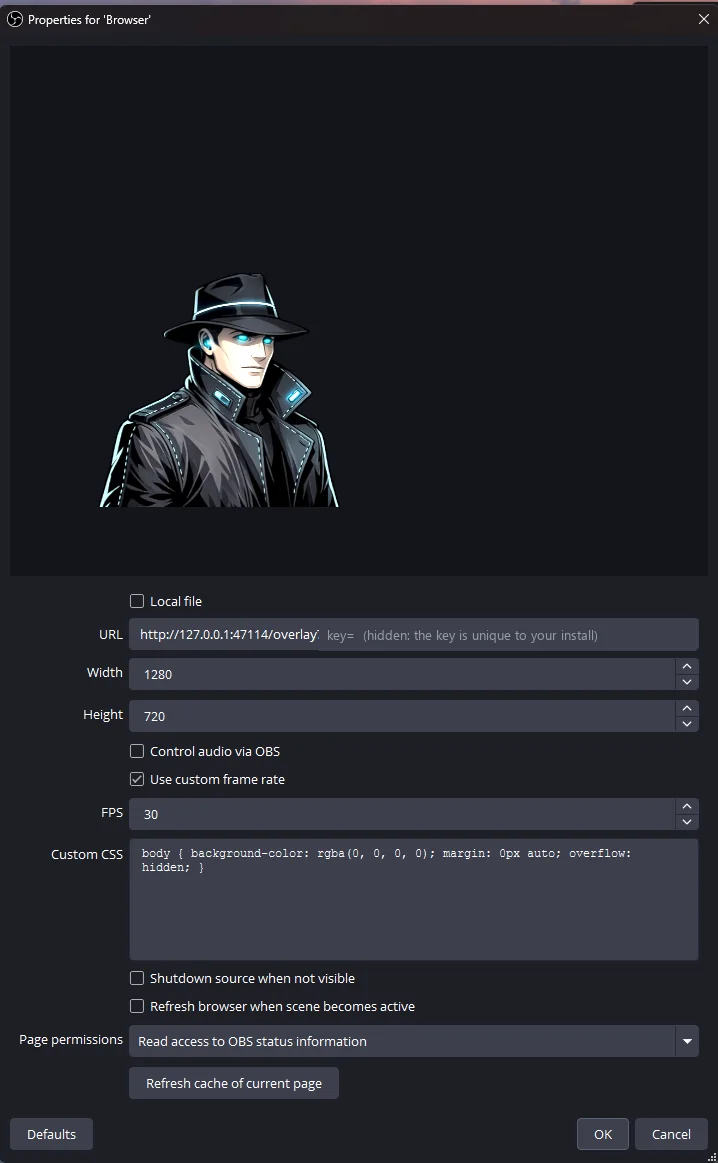
Keep Local file off. Click Copy OBS Source here, then paste into the URL box in OBS. Set Width to 800 and Height to 600. Click OK.
Put the Browser source above your game source and keep its eye icon on. Keep Signal Broker open. Use OBS Desktop Audio to record the voice; check its meter before recording.
Resize or move the source in the OBS preview like any other; the preset you chose in the app decides where the Broker and his line sit inside the 800 × 600 frame (centred with the line above him, or in a bottom corner with the line opening toward the middle).
The developer’s own OBS Browser-source properties (14 October 2026, Founder Alpha): Local file off, the address copied from the app (its per-install key is hidden here), custom frame rate 30 FPS, OBS’s default custom CSS. This scene runs the source at 1280 × 720; the app’s card asks for 800 × 600. Both are in use; the preview shows the Broker rendering either way.
Place it over your game
Order matters. The Browser source must be above the game source in the Sources list, with its eye icon on, or the game covers him.
Keep the app open. The source shows the Broker only while Signal Broker runs with the overlay enabled; close the app and the source goes blank.
One source is enough. Do not add a second Browser source for the same overlay; if you reset or reinstall the app, copy the source again and paste the new address into the existing source’s properties.
The in-game overlay is separate. What your viewers see is this Browser source; what you see over your own game is the in-game overlay and the Broker Bar (toggle it with Ctrl + Shift + Alt + B). Position and size of the in-game overlay are yours in Settings.
Audio: his voice
The overlay has no sound of its own. The Broker speaks through your Windows default output device, so OBS Desktop Audio captures him together with the game. There is no separate audio track yet.
Check the meter first. From the app’s own guide: The Browser overlay has no audio. OBS Desktop Audio records the Broker’s Windows playback. Check your audio meters and make a short test recording before going live.
Balance. Adjust Broker volume in the app under Settings → Voice & capture; adjust the game in the game. If you switch headsets or speakers mid-session, stop and start the session again.
Blank source or missing voice?
The app’s own troubleshooting, in its words:
Keep Signal Broker open and Enable OBS overlay on.
Copy the source again after a reset or reinstall.
In OBS source properties, keep Local file off and use 800 × 600.
Click Refresh cache of current page.
Check the source is visible and above your game.
The overlay has no sound: enable OBS Desktop Audio for the Broker’s Windows output.
If preview also fails, turn the overlay off and on; Help has support and diagnostics.
Replacing the source. Under Replace source or view its address, Regenerate OBS Source creates a new address: the old source and any open preview will stop connecting, so copy the new OBS Source into the Browser source properties in OBS. The Broker keeps operating meanwhile.
If the overlay could not start the app says so and the Broker can still run; turn the overlay off and on to retry, and if it keeps failing, contact support.
Tell your audience
The commentary is generated by AI. Say so on stream or in your description; some platforms and countries require it. What you record and publish is yours to manage; the Broker’s lines are AI-generated and should be labelled as such when published.
What it costs
Streaming a session spends Signal Time exactly like playing without a stream. Signal Time is metered from the Broker’s managed AI work — every look at your game and every spoken line — rather than simply the elapsed time of your gameplay session. Your account shows usage and remaining balance. The free trial is 30 Signal Minutes; Founder Alpha membership and additional Signal Time are on Pricing.
PAUSE holds the Broker without ending the session: he stops looking and speaking until you press RESUME. There is no in-session game switching: to change game, STOP, choose the other game in the app, then START.
Limits
The overlay has no sound of its own: the Broker’s voice reaches OBS only through Desktop Audio (your Windows default output device). There is no separate audio track yet.
The OBS Source address points at your own PC and works only while Signal Broker is open with the overlay enabled.
Streaming a session spends Signal Time exactly like playing without a stream.
The Broker’s words and voice are generated by AI and can be wrong or badly timed; tell your audience the commentary is AI-generated.
Founder Alpha is available to customers in the United States. Founder Alpha is early-access software. Signal Broker is an AI system. The Broker's words and voice are generated using AI. No person is speaking or writing what he says.